投稿

ラベル(開発)が付いた投稿を表示しています

appledocの導入方法

イメージ
 何度か使用しているappledocなのですが、毎回導入手順等の記録を疎かにしてしまうので、ここらで私なりの手順まとめてみようと思います。  1.そもそもappledocって何?  appledocを使用すると、ソースコードのコメントからAPIドキュメントを自動生成することができます。Apple社のリファレンスに似せたドキュメントが生成されるため、iOS等の技術者に取っ付きやすいフォーマットで出力されます。JavadocのObjective-c版という感じでしょうか。   2.導入手順  2-1.appledocのインストール  いろいろ手順はあるのですが、今回はGithubからソース取得&コンパイルしてみます。 ソースのダウンロード  git clone git://github.com/tomaz/appledoc.git ダウンロードできたらコンパイルします。  shdo sh install-appledoc.sh これでappledocコマンドが実行出来ます。  2-2.Xcodeからappledocを使用する  ターミナルからもappledocを使用できるのですが、コードを修正する度(APIリファレンスを作成する度)にコマンドを叩くのは若干手間がかかります。ですので、Xcodeから実行出来るようにしてみます。  まず、プロジェクトを選択し、画面下のAddTargetを選択してAggregateを作成します。すると作成したTarget(Scheme)が追加されます。  追加したTargetを選択し、画面右下の『Add Build Phase』の『Add Run Script』を選択します。 Run Scriptに以下のScriptを入力します。(Ctr+zの戻るコマンドは使えないので注意!!) appledoc --project-name [プロジェクト名] --project-company [会社名] --company-id [会社のID] --create-html --no-create-docset --output  [アウトプット先]  [ソースコード場所] 以上...

UITableViewCell の アニメーション

イメージ
どうやら、UITableViewCellを追加、削除、refreshするときのアニメーションがデフォルトで用意されている模様。 指定出来るアニメーションは以下の通り。 typedef NS_ENUM(NSInteger, UITableViewRowAnimation) { UITableViewRowAnimationFade, UITableViewRowAnimationRight, UITableViewRowAnimationLeft, UITableViewRowAnimationTop, UITableViewRowAnimationBottom, UITableViewRowAnimationNone, UITableViewRowAnimationMiddle, UITableViewRowAnimationAutomatic = 100 }; (例) リロードする場合は、UITableViewControllerのサブクラス内で、 - (void)reloadSections:(NSIndexSet *)sections withRowAnimation:(UITableViewRowAnimation)animation; を以下の様に使用すればOK。 [self.tableView reloadSections:[NSIndexSet indexSetWithIndex:0] withRowAnimation:UITableViewRowAnimationAutomatic]; 復習も兼ねて、全てのAnimationを確認するためのサンプルコードを作成した。 サンプルコード https://github.com/AlginPlus/TableCellAnimationSample

Mac Book Air で CUDA

イメージ
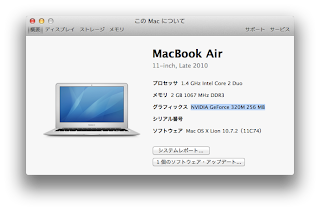
2年前に買ったAirですが、NVDIAのGPUだったことに今更気付いたw  せっかくなのでCUDAで遊んでみる。 今回はCUDA 4.1を使ってみます。 以下のサイトからDeveloper DriversとGPU Computing SDKとCUDA Toolkitをダウンロードします。 http://developer.nvidia.com/cuda-toolkit-41 ダウンロードが完了したら以下の順番でインストール。 (1) Developer Drivers (2) CUDA Toolkit (3) GPU Computing SDK 【以下のパスを通す】 PATH=/usr/local/cuda/bin:$PATH DYLD_LIBRARY_PATH=/usr/local/cuda/lib:$DYLD_LIBRARY_PATH 【CUDAのlibの権限変更】 $ sudo chmod 755 /usr/local/cuda/lib 【コンパイル】 ディレクトリ移動 $ cd /Developer/GPU Computing/C makeを実行し、ビルド $make 【サンプル起動】 ビルドが完了したらサンプルのあるフォルダに移動 $ cd /Developer/GPU Computing/C/bin/darwin/release/ ためしにマーチングキューブのサンプルを動かしてみる。 $./marchingCubes

CentOS のファイアーウォールの停止方法

ファイアーウォールのステータス確認 /etc/init.d/iptables status ファイアーウォールの停止 /etc/init.d/iptables stop ファイアーウォールの開始 /etc/init.d/iptables start

CentOS 5.5のnasマウント方法

sambaのパッケージをインストール。 yum -install samba-client マウントするディレクトリの作成(任意) mkdir /mnt/nas 作成したディレクトリにマウントする。 mount -t cifs -o user=(ユーザー名),password=(パスワード) //(IPアドレス等)/share /mnt/nas

Implementation of the USB 2.0 Controller not foundの対処法

VirtualBox 4.0.8 にバージョンアップ。 仮想マシン起動時に以下の様なメッセージが表示された。 Implementation of the USB 2.0 Controller not found どうやらVirtualBox 4.0.8 Oracle VM VirtualBox Extension Packがインストールされていなかったためらしい。 ここから(http://www.virtualbox.org/wiki/Downloads)をダウンロード&インストールで解決しました。

UIAvtionSheetのキャンセルボタンが効かない?

ツールバーがあるとActionSheetのキャンセルボタンの下半分がきかない。 変更前 UIActionSheet *actionSheet = [[UIActionSheet alloc] init]; actionSheet.title = @"タイトル"; [actionSheet addButtonWithTitle:@"決定"]; [actionSheet addButtonWithTitle:@"キャンセル"]; actionSheet.cancelButtonIndex = 1; actionSheet.destructiveButtonIndex = 0; actionSheet.delegate = self; [actionSheet showInView:self.view]; 変更後 UIActionSheet *actionSheet = [[UIActionSheet alloc] init]; actionSheet.title = @"タイトル"; [actionSheet addButtonWithTitle:@"決定"]; [actionSheet addButtonWithTitle:@"キャンセル"]; actionSheet.cancelButtonIndex = 1; actionSheet.destructiveButtonIndex = 0; actionSheet.delegate = self; [sheet showInView:self.view.window];

UIAlertViewをカスタマイズするには

イメージ
UIAlertViewのカスタマイズにつまずいたのでメモ。 通常UIAlertViewを表示したい場合、以下のようなコードを作成する...と思う。 UIAlertView *alert = [[[UIAlertView alloc] initWithTitle:@"タイトル" message:@"メッセージ" delegate:self cancelButtonTitle:@"キャンセル" otherButtonTitles:@"決定", nil] autorelease]; [alert show]; サイズを変更したかったので、showメソッドの前でframeを変更する。 が、考慮されない模様。 UIAlertView *alert = [[[UIAlertView alloc] initWithTitle:@"タイトル" message:@"メッセージ" delegate:self cancelButtonTitle:@"キャンセル" otherButtonTitles:@"決定", nil] autorelease]; alert.frame = CGRectMake(0,0,150,150);//サイズ変更が考慮されない [alert show]; どうやら[alert show]した後でないとカスタマイズできない。 なので、以下のようにUIAlertViewDelegateの- (void)willPresentAlertView:(UIAlertView *)alertViewの中でalertViewのサイズを変更する。 -(void)willPresentAlertView:(UIAlertView *)alertView{ CGRect alertFrame = CGRectMake(0,0,320,360); alertView.frame = alertFrame; } 当然ながらサイズを変更するとボタンの位置も変更したくなるので、以下のコードで無理...